How to use Feed Me
Welcome to Feed Me 👋 — your warm little kitchen companion for planning meals, tracking what you eat, building a shopping list, and saving recipes from anywhere.
This guide walks you through everything, step by step. You don’t need to read it all — jump to whatever you’re trying to do.
Getting around
Feed Me has five tabs along the bottom:
- Today — your daily food diary and calorie/macro tracker.
- Plan — plan meals for the week ahead.
- Scan (the round button in the middle) — the quickest way to log food or add a recipe.
- Recipes — browse the recipe library and your own saved recipes.
- Profile — your details, preferences, and settings.
When you first sign up, Feed Me asks you a few quick questions (your goal, a bit about you, how you like to cook, any dietary preferences) and builds a personalised plan with daily targets. You only do this once.
Today — your daily food diary
The Today tab is where you keep an eye on what you’ve eaten.
The calorie ring
The big ring shows the calories you’ve eaten so far against your daily target — for example 1,750 / 2,000. Underneath it tells you how many you have left (or how many you’re over). If you’ve connected Apple Health, calories you burn through exercise can be added on top (see Apple Health below).
Three bars below the ring track your protein, carbs, and fat for the day against your targets. Don’t worry if those words are new:
- Protein helps build and repair your body.
- Carbs are your main energy source.
- Fat keeps you full and supports your body.
Logging your food
There are four quick ways to log a meal — tap any of the buttons on Today, or use the Scan tab:
- Describe — type what you ate (e.g. “2 eggs on toast with butter”). Pick a match from the list, or let Feed Me estimate it for you.
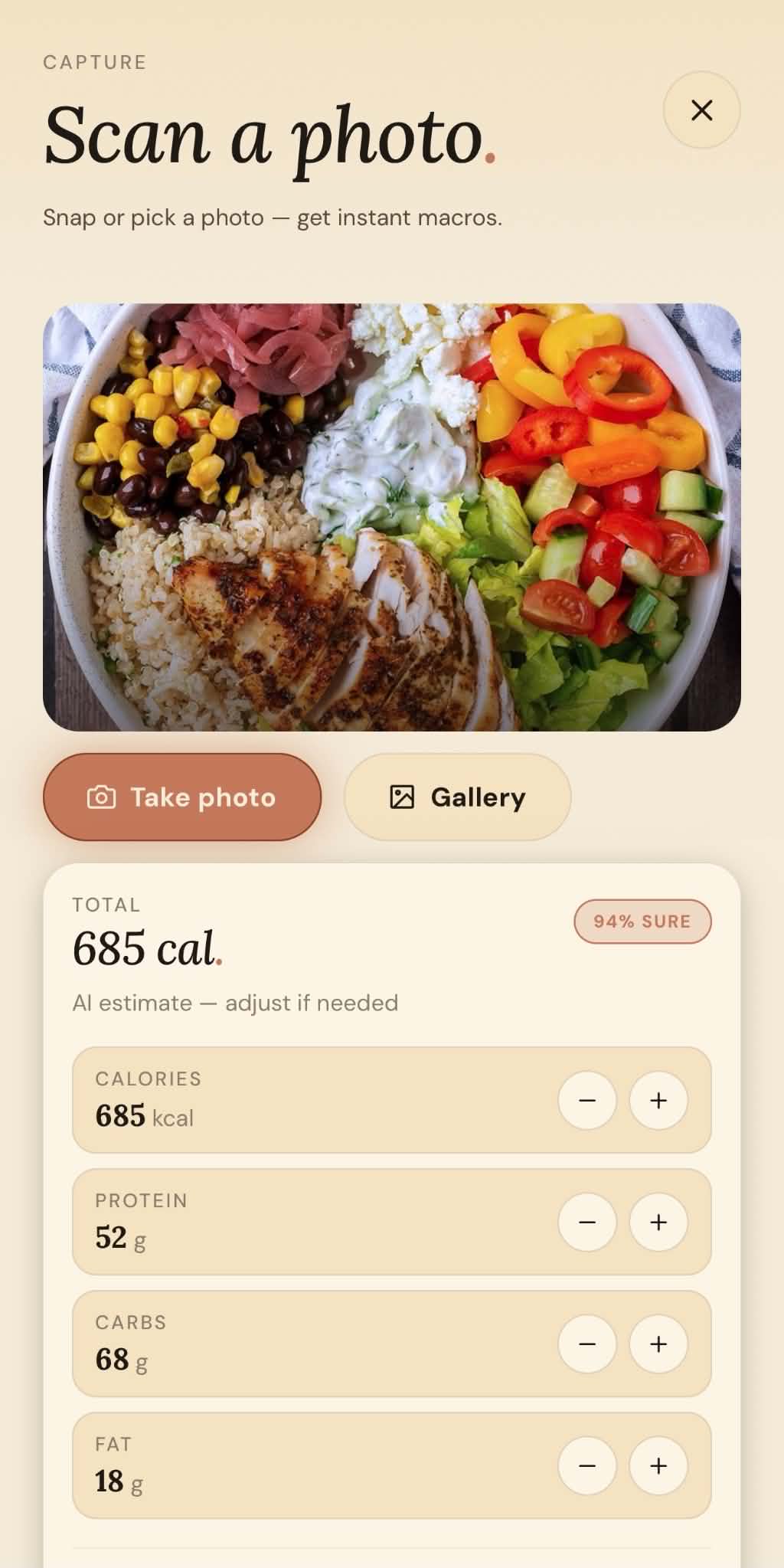
- Photo — snap or choose a photo of your plate and Feed Me estimates the calories and macros.
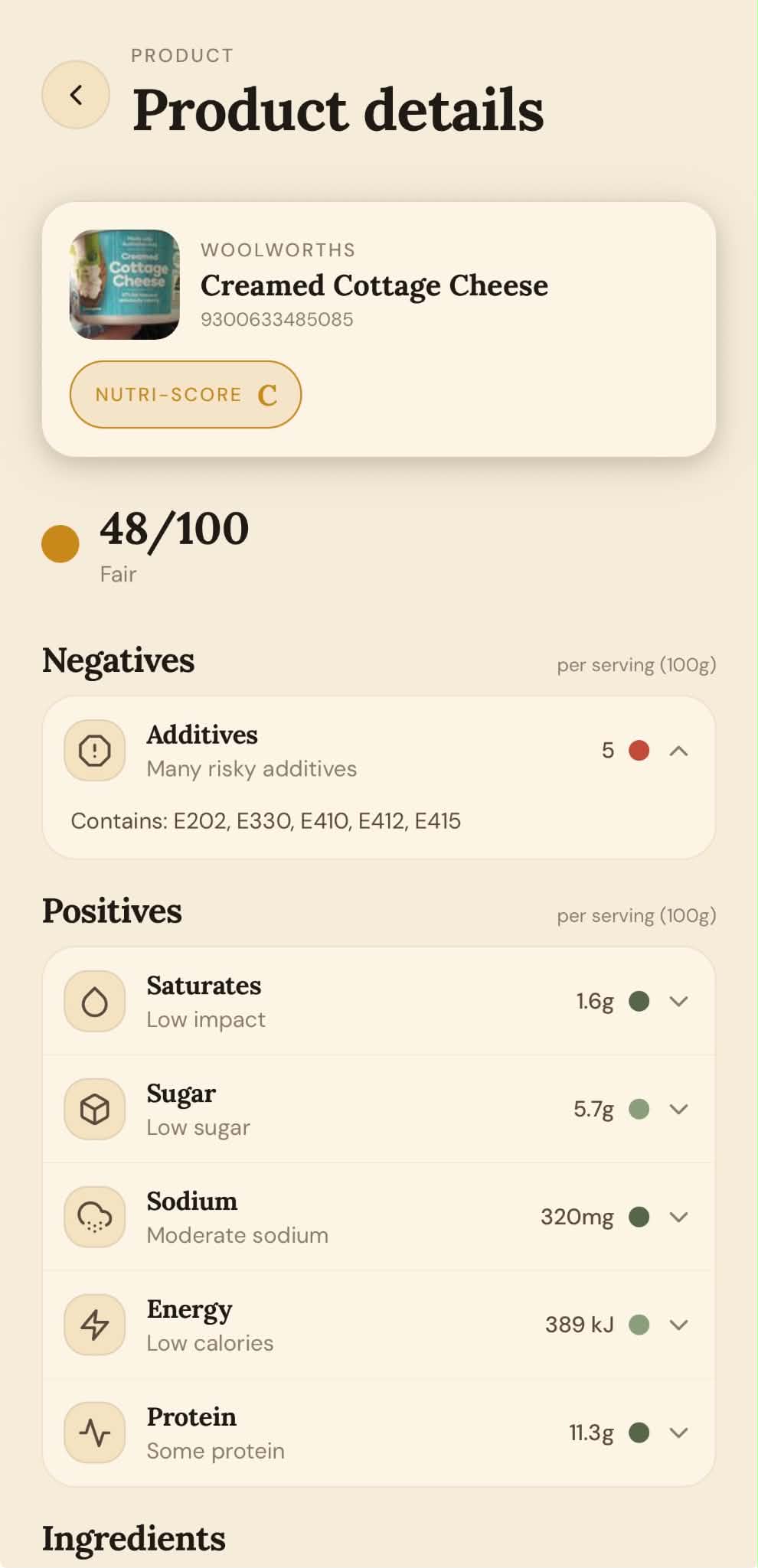
- Barcode — scan a packaged product’s barcode to pull in its nutrition.
- Library — log something from your saved recipes.
Everything you log appears in your day, and the ring and bars update straight away. Tap the big card on Today to see the full day and add or remove entries.
Your weight
Tap the weight card to log today’s weigh-in. Feed Me shows your 7-day average and the trend over time, so day-to-day wobbles don’t worry you. Tap Trends (or press and hold the card) to see your charts.
History and trends
Tap the Today card to open the full day, then use the Analytics / Trends screen to look back over the last week, month, or longer. You’ll see your average calories, weight change, and how many days you logged. Tap any day to see exactly what you ate.
Your daily targets
Your targets (calories, protein, carbs, fat) are worked out automatically from your goal and details. To change them, go to Profile → Nutrition targets:
- Calculated — Feed Me does the maths from your stats and goal. Tap any stat to update it.
- Custom — set your own numbers if you’ve been given specific guidance.
Tap Save targets when you’re done.
Home-screen widgets
Add a Feed Me widget to your phone’s home screen for an at-a-glance look:
- Today’s Plate — your calorie ring and how much you have left.
- On the Menu — what’s planned to eat today.
Scan — log food & add recipes fast
The Scan tab (the middle button) gathers every quick action in one place.
Log what you ate
- Describe Meal — type your meal; pick a common food or tap Estimate with AI. The Recent and Favourites tabs let you re-log things in a tap.
- Scan Photo — Take photo or pick from Gallery; Feed Me estimates the nutrition. Edit the servings or numbers, then Log to today.
- Scan Barcode — point your camera at a product barcode. You’ll see the product, its nutrition, and a health verdict against your targets.
Add a recipe
- Suggest a Recipe — tell Feed Me a Meal idea (e.g. “a high-protein chicken rice bowl”), or choose Use what I have and list your ingredients. Feed Me writes a full recipe you can save.
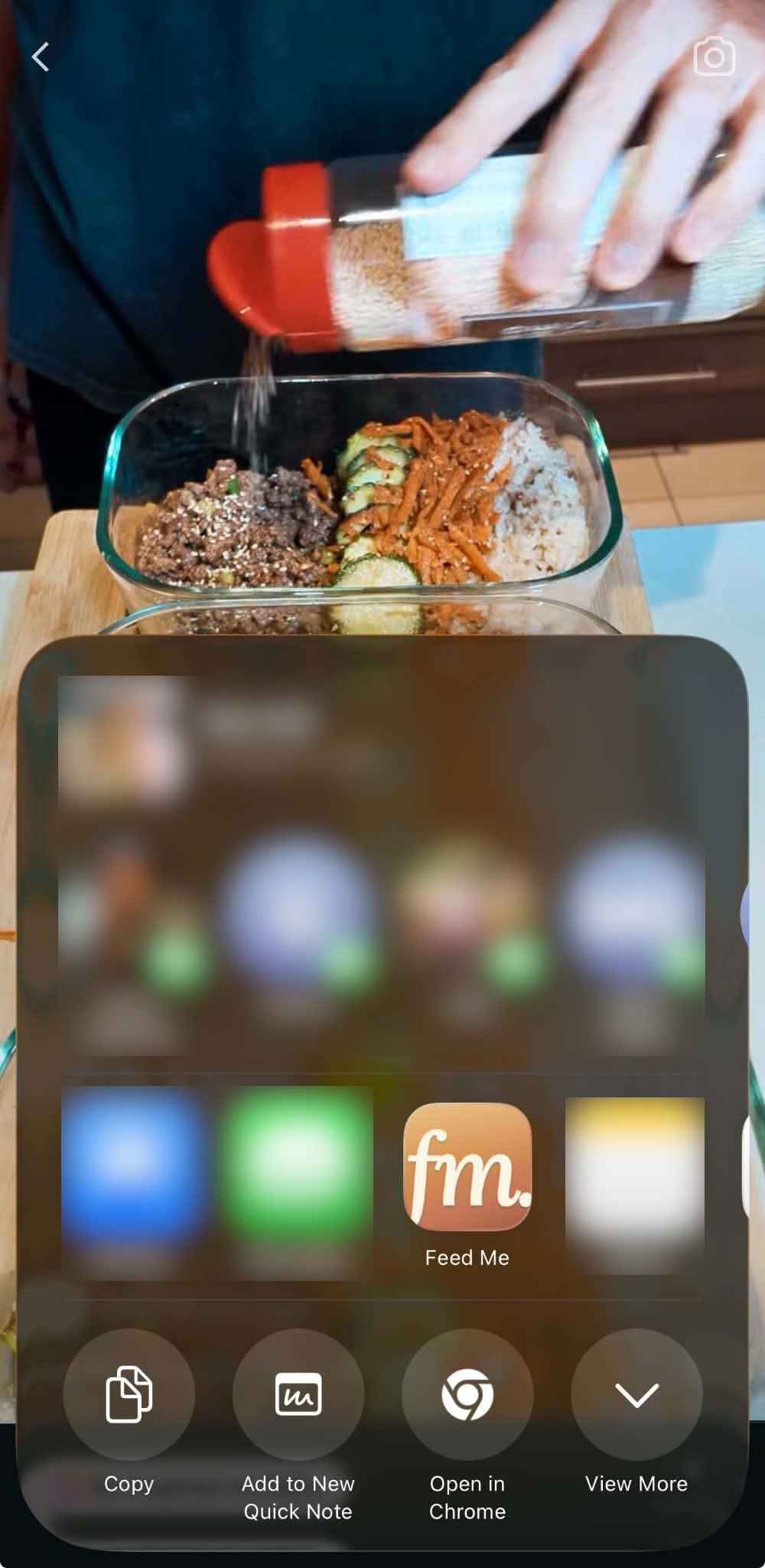
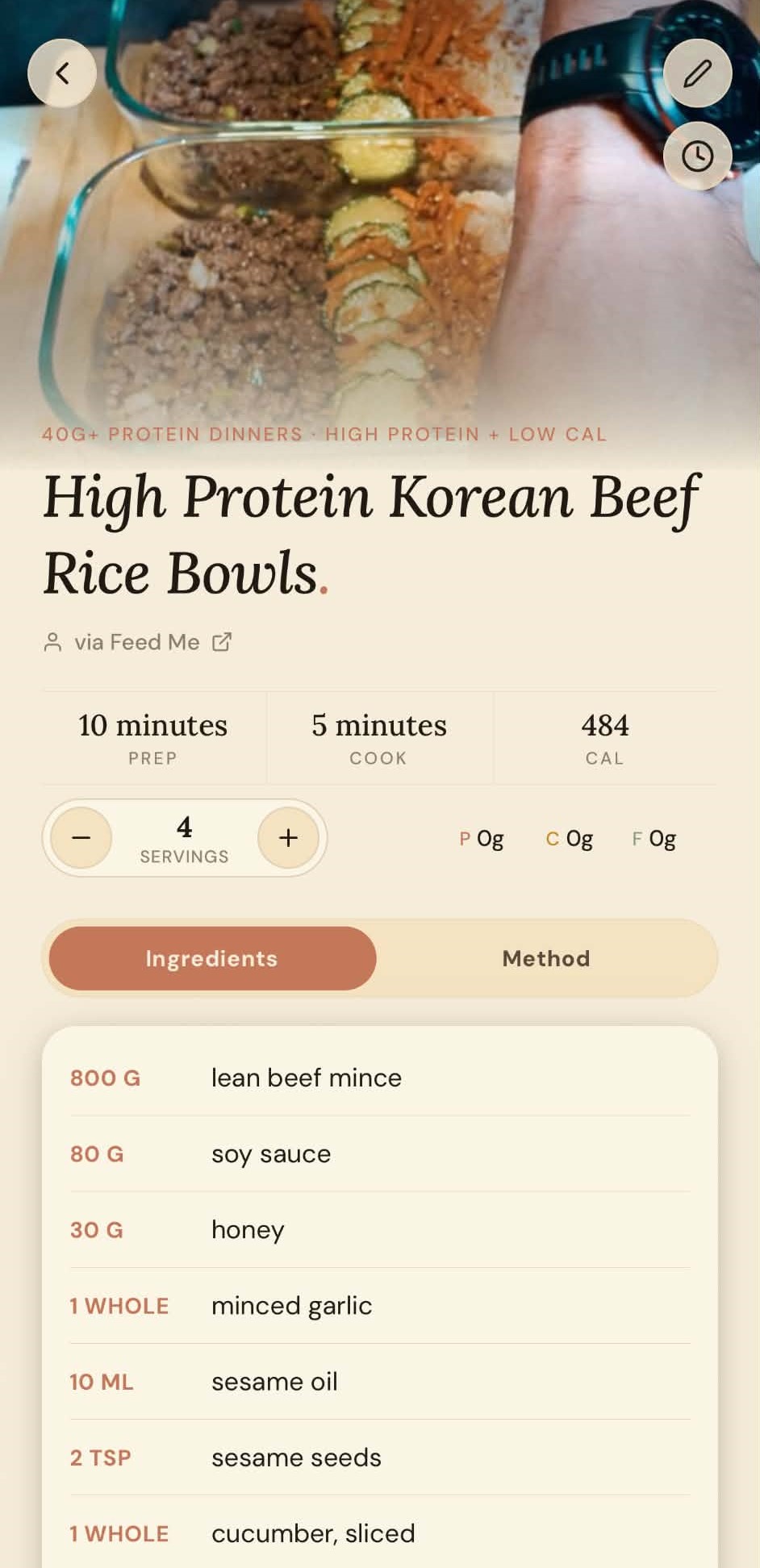
- Import Recipe — paste a link from a recipe website, TikTok, Instagram or Facebook, or paste the recipe text. Feed Me reads it (it can even listen to a cooking video) and pulls out the ingredients, steps, and nutrition.
- Create Recipe Manually — type your own recipe (title, servings, cook time, ingredients one per line, and the method).
Tip: in TikTok, Instagram or your browser, tap Share and choose Feed Me — the recipe import starts automatically.
Check products in-store
- Scan Product — scan a barcode while shopping to see its nutrition and a health verdict, without logging it.
- Scan History — everything you’ve scanned in-store, ready to re-open.
Free vs Pro
The camera, barcode, manual entry, planning, and shopping list are always free. The AI features come with a free weekly allowance for everyone that resets every Monday — 5 photo scans, 5 “Describe Meal” estimates, 3 recipe imports (shared across links, social, and screenshots) and 2 AI suggestions each week. After that they’re part of Feed Me Pro — see below. You’ll need to be signed in to a Feed Me account to use the AI features. AI estimates are a helpful guide, not medical advice, so always check labels if you have allergies.
Recipes & cookbooks
The Recipes tab has two parts:
- Discover — a big library of recipes. Use the search (magnifying glass) to find something by name or ingredient, and the filter (sliders) to pick a category. If you set a dietary preference, Discover automatically shows recipes that fit.
- Cookbooks — your own saved recipes, organised into collections.
Free members see a selection of the library; Pro unlocks all of it (locked recipes show a small padlock).
Opening a recipe
Tap any recipe to open it. You’ll see a photo, the ingredients and the method (on two tabs), and the calories and macros. A few handy things:
- Servings — tap + / − to change how many you’re cooking for; the ingredient amounts update automatically.
- Timer — tap the clock to start a cooking timer that keeps running as you scroll.
- Save — tap the bookmark to save a Discover recipe to your own collection.
- Add to my week — drop the recipe straight into your meal plan.
Your own recipes & cookbooks
- Save recipes from Discover, import them from the web/social, ask AI to suggest them, or create your own — they all land in your Cookbooks.
- Feed Me organises them automatically (e.g. Social, AI Suggestions, My Recipes, Recently Added), and you can make your own cookbooks too — tap + New cookbook, then add recipes with the book icon on any recipe.
- To edit one of your recipes, open it and tap the pencil. To delete, swipe a recipe in the list view and confirm.
Plan — map out your week
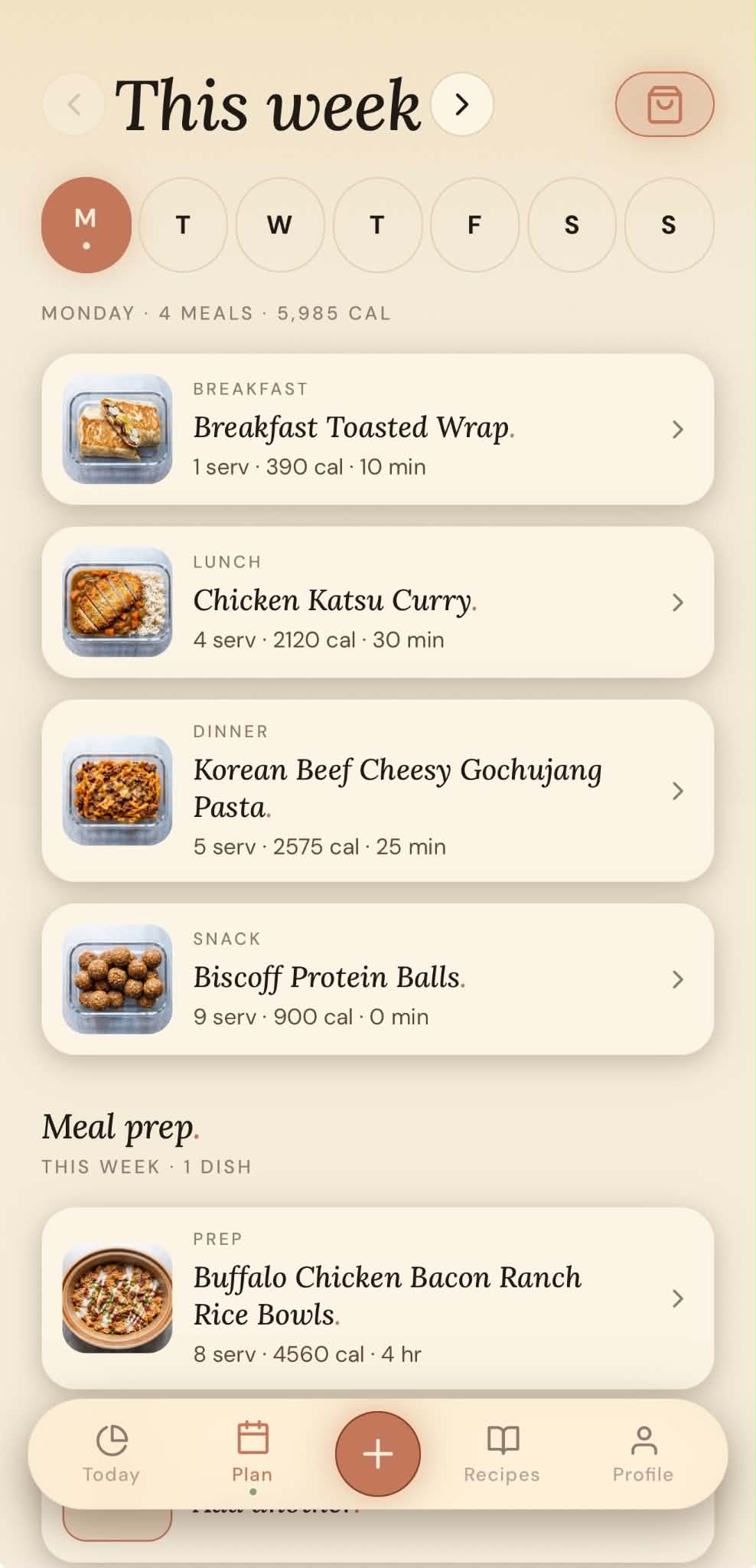
The Plan tab lays your week out by day, with Breakfast, Lunch, Dinner and Snack slots.
Adding meals
- Tap an empty slot (Pick a meal), or open any recipe and tap Add to my week.
- Choose the day and the meal (a slot that’s already filled shows a padlock).
- Adjust servings first if you like — the totals update to match.
Tap the day letters (M T W…) to jump between days; the chevrons at the top move between this week and next week. To remove a meal, swipe it and tap Remove. There’s also a Meal prep section for batch-cook dishes you want ready for the week.
Shopping list
Your shopping list builds itself from the meals you’ve planned. Open it with the shopping-bag button on the Plan tab.
- It’s grouped by aisle (Produce, Dairy, Proteins…), and identical ingredients are added together so you don’t get duplicates.
- Choose Day, Week, or Next week at the top to change what it covers.
- Tap an item to tick it off as you shop.
- Type in the “Add an item…” box to add anything extra (like dish soap).
- Swipe an item to remove it.
- Tap share to send or save the list as text.
If you haven’t planned any meals yet, the list will be empty — plan a few meals first, or just jot items in the box.
Make it yours — Profile & settings
Open the Profile tab to adjust anything:
- About you — your name, date of birth, sex, height, weight, activity level, and goal. Changing these updates your targets.
- Units — metric or imperial, set separately for your body stats and for recipes.
- Dietary preference — None, Vegetarian, Vegan, or Pescatarian. Filters recipes and your shopping list.
- Notifications — gentle, optional reminders: tonight’s meal, calorie check-in, morning weigh-in, weekly meal prep, and new featured recipes. Tap one to set its time, or switch it off.
- Appearance — switch between Light and Dark, choose a colour theme, and pick a font.
- Apple Health (iPhone) — sync your logged meals to Apple Health, and optionally add the calories you burn through exercise to your daily budget. You choose how much to add and whether to cap it.
- Export meals (Pro) — download your food diary as a PDF or spreadsheet.
- Sign out / Delete account — deleting is permanent and asks you to type a confirmation phrase first; it can’t be undone.
Apple Health, a little more
When you connect Apple Health, Feed Me writes the meals you log into the Health app, and can read your active energy and steps to keep your calorie ring accurate. You’re always in control — turn it off any time in iOS Settings → Health → Data Access & Devices.
Feed Me Pro
Most of Feed Me is free forever — the planner, shopping list, tracker, themes, and reminders. Feed Me Pro adds:
- The full recipe library
- Unlimited AI food scans (photo & describe)
- Unlimited recipe imports (links, social, paste)
- Unlimited AI recipe suggestions
- Meal export (PDF/CSV)
Everyone gets a free weekly allowance of the AI features that resets every Monday; once you’ve used the week’s allowance, you’ll be invited to upgrade (or you can wait for the reset).
Trial & plans
- A free trial lets you try every Pro feature with nothing charged today.
- Choose Monthly or Annual — both unlock the same features; Annual is the better value per month.
- Not ready? Tap Maybe later — you can upgrade any time from the Profile tab.
- Already subscribed on another device? Tap Restore on the paywall.
- Manage or cancel anytime via Profile → Manage subscription (this opens the App Store or Google Play, which handle billing).
Invite friends & redeem codes
- Invite friends — paying Pro members can share a referral code. A friend who redeems it gets a 7-day free Pro trial. You get a fresh code for the next friend.
- Redeem a code — got a code? Enter it under Profile → Redeem a code to start your own free Pro trial. One per account.
Tips & common questions
- New to tracking? Just log a meal or two a day to start — it gets quicker as the app learns your favourites.
- Made a mistake? Open the day from Today and remove the entry; swipe to remove planned meals or shopping items.
- Offline? You can still browse what’s loaded; changes sync when you’re back online.
- AI looks off? It’s an estimate — tap to adjust the numbers before you log, and always check packaging for allergens.
- Need a hand? Email us any time at support@envyapplications.com — we read every message.
Happy cooking 🍲